1. Подготовьте золотой образ
- Создайте чистый образ Gold в vCenter, который управляет кластером ресурсов VDI.
- Установите VMware Tools в свой образ
- Установите агент Horizon в свой образ
- Перезагрузите образ Gold при появлении запроса
- Убедитесь, что у вас есть локальная учетная запись администратора на образе
- Запустите VMware Optimization Tool на золотом образе
- Убедитесь, что «Microsoft OneDrive» не выбран (необязательно)
- Убедитесь, что флажок «Удалить сторонние приложения» не выбран (необязательно)
- Создайте папку на образе Gold (C:\Temp)
Обратите внимание : если вам нужно присоединить образ Gold к домену для распространения привилегий пользователей, рекомендуется разместить образ Gold в изолированной организационной единице, чтобы у вас не была удалена учетная запись локального администратора из образа.
2. Создайте безопасный файл паролей
При использовании Key/SecureKey используется алгоритм шифрования Advanced Encryption Standard (AES — wiki link ). Вы можете использовать сохраненные учетные данные с любого компьютера с любым пользователем, если вы знаете используемый ключ AES.
В этом сообщении блога от PDQ есть несколько полезных советов по шифрованию учетных данных и защите паролей :
Создать зашифрованный файл с паролем powershell
1)Сделаем файл с паролем для заведение в домен
$File = "C:\temp\Password.txt"
[Byte[]] $key = (1..16)
$Password = "пароль" | ConvertTo-SecureString -AsPlainText -Force
$Password | ConvertFrom-SecureString -key $key | Out-File $File
Создайте сценарий
- Создайте файл с именем vdiDomainJoin.ps1 и поместите его в папку C:\Temp.
- Скопируйте содержимое кода отсюда в файл vdiDomainJoin.ps1 и сохраните
 Start-Transcript "C:\temp\DomainJoin"
#Variable Section

#
# This script was created by Jeremy Wheeler from VMware EUC-PSO (2022)
#
# This script is free to use. Please adjust the below fields to make it work in your environment.
#
# $GoldImageName = What gold image name you are using as a template for full clones
# $DOMAIN="acme.com" = change to your domain name
# $UATOU = Change to the correct OU in your environment where you want the full clones to reside
# $User = Change to your domain\username that has an account with permissions to join/remove machines to the domain.
# $PasswordFile = This script assumes you are using an AES encrypted password file located in the temp folder location.
#                 Please reference the following link for instructions for how to generate an AES encrypted password file.
#                 https://www.pdq.com/blog/secure-password-with-powershell-encrypting-credentials-part-2/#using-key-secure-key
#

$GoldImageName = "windows10gold1" # Change this to match the Gold Image Computer Name
$ver = "v1"
$Logfile = "C:\temp\DomainJoin-$ver.log" # Log file location
$VDIHostname = "$env:COMPUTERNAME" # Grabs local computer name
$VDIHostname

{
    Param ([string]$logstring)
    $datentime = Get-Date -Format g
    $logstring = "$datentime" + ": " + "$logstring"
    Add-content $Logfile -value $logstring
}

# Domain Join OU & Account Details
$DOMAIN="areon.pro" # Domain Name

# OU Path
$UATOU = "OU=Vdi,OU=Computers,OU=Locations,DC=areon,DC=pro"

# Credentials needed when launching

#$User = "srv.Horizon@areon.pro" # User Account
#$PasswordFile = "C:\Temp\Password.txt" # Encrypted Password File
##$KeyFile = "C:\Temp\AES.key" # AES Key File
##$key = Get-Content $KeyFile
#$VIcred= New-object System.Management.Automation.PSCredential -ArgumentList $User, $PasswordFile
#$VIcred

$File = “C:\temp\Password.txt"
[Byte[]] $key = (1..16)
Get-Content $File | ConvertTo-SecureString -Key $key

$encrypted = Get-Content $File | ConvertTo-SecureString -Key $key
$credential = New-Object System.Management.Automation.PsCredential("srv.Horizon@areon.pro", $encrypted)

# Cleanup

If($GoldImageName -eq $VDIHostname){
    # Script is being executed from Gold Image, skip cleanup.
}else {
    # Execute cleanup
    Get-ChildItem C:\temp -Include *.* -Recurse | ForEach  { $_.Delete()}
    Remove-Item C:\temp -Force -Recurse
}

# Joining the Device to PreDefined OU.

Add-Computer -DomainName $DOMAIN -OUPath $UATOU -credential $credential  -Restart -Confirm:$false
3. Создайте файл cmd.bat в c:\temp
cd C:\temp
powershell -ExecutionPolicy ByPass -file "%~dp0\vdiDomainJoin.ps1" >>vdiDomainJoin.ps1-%date%.log
Должно получиться
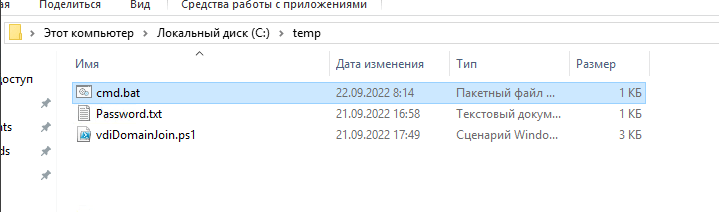
В образе Gold откройте PowerShell и выполните следующий синтаксис: set-executionpolicy -executionPolicy Unrestricted
- Теперь мы закончили с золотым изображением.
- Выключить изображение
- В vCenter щелкните правой кнопкой мыши золотой образ.
- Выберите «Клонировать»
- Выберите «Клонировать в шаблон»
Подготовьте «Профиль спецификации настройки виртуальной машины».
Откройте страницу управления vCenter для кластера ресурсов VDI.
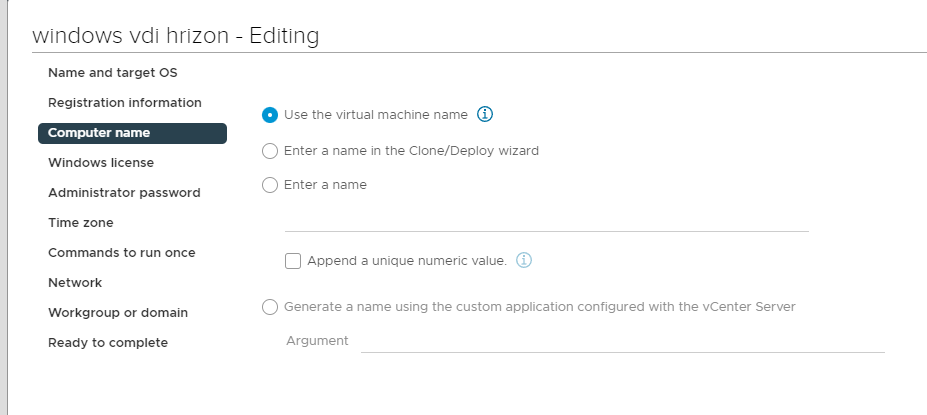
- Создайте профиль спецификаций настройки виртуальной машины.
- В разделе «Команды для однократного запуска» введите следующий синтаксис:
- cmd.exe /C C:\temp\cmd.bat
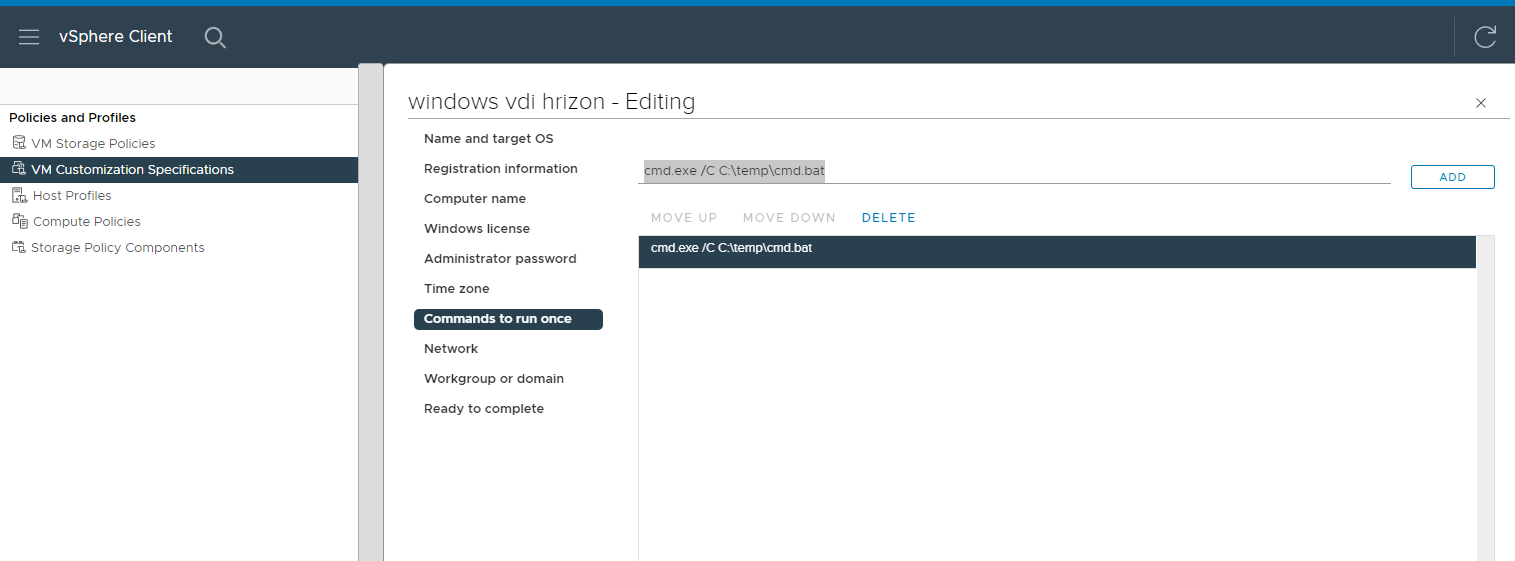
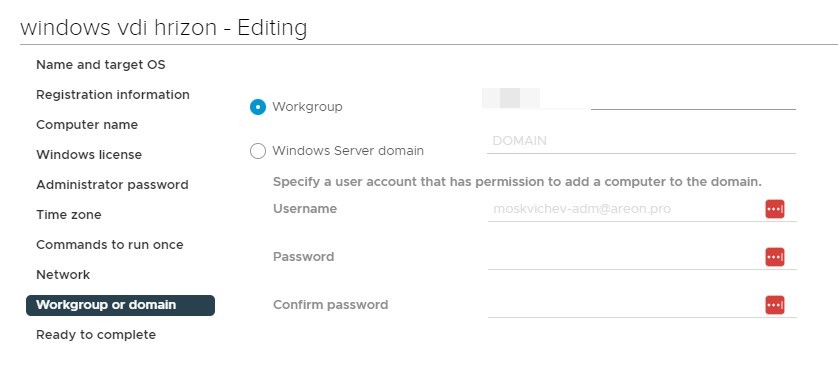
3. В разделе «Рабочая группа или домен» оставьте выбранным вариант «Рабочая группа».
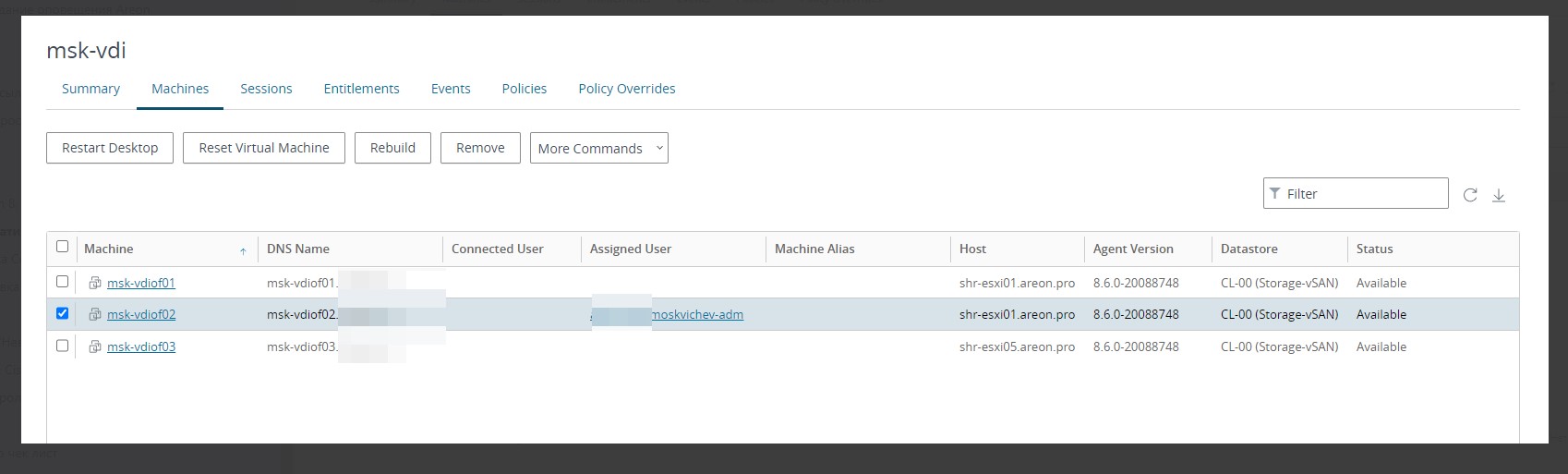
В horizon
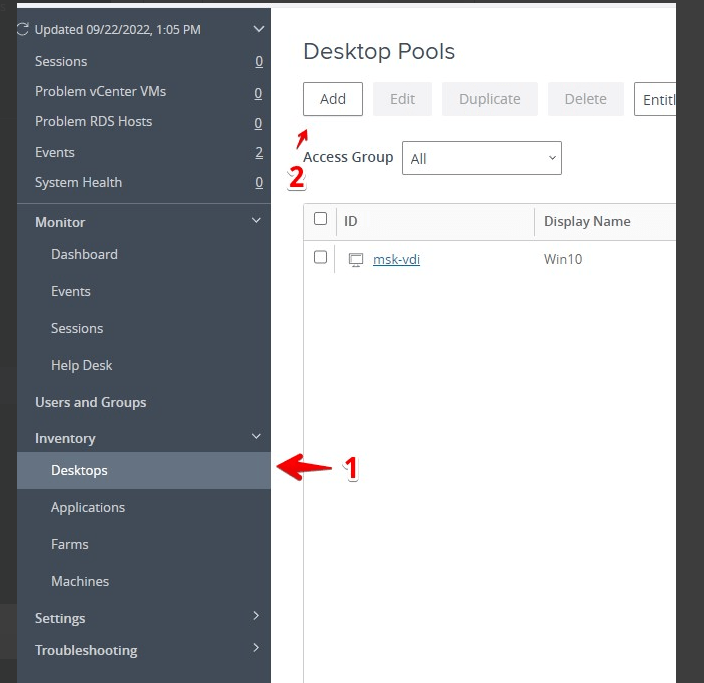
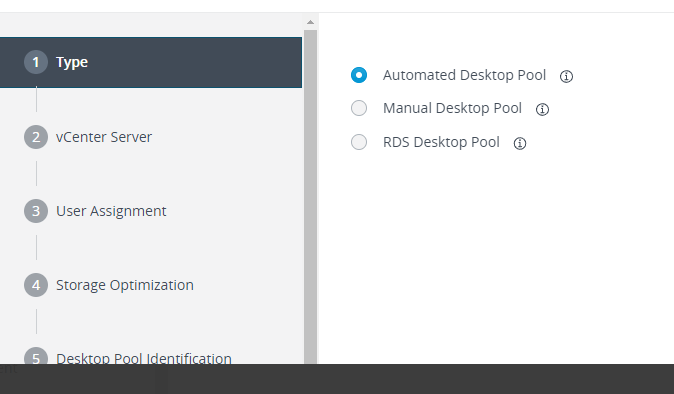
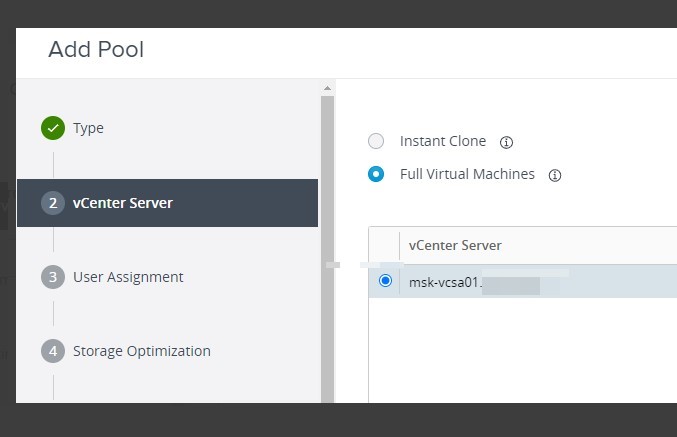
Выбираем Full Virtual Machines
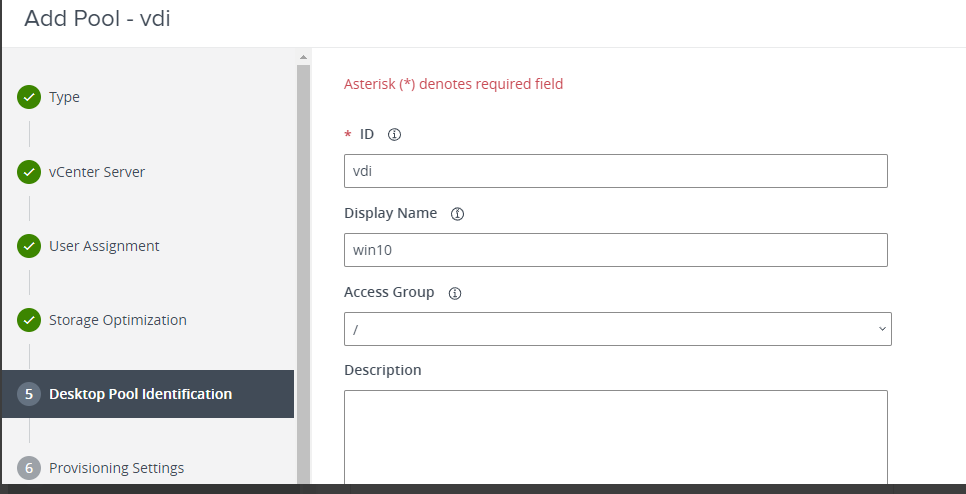
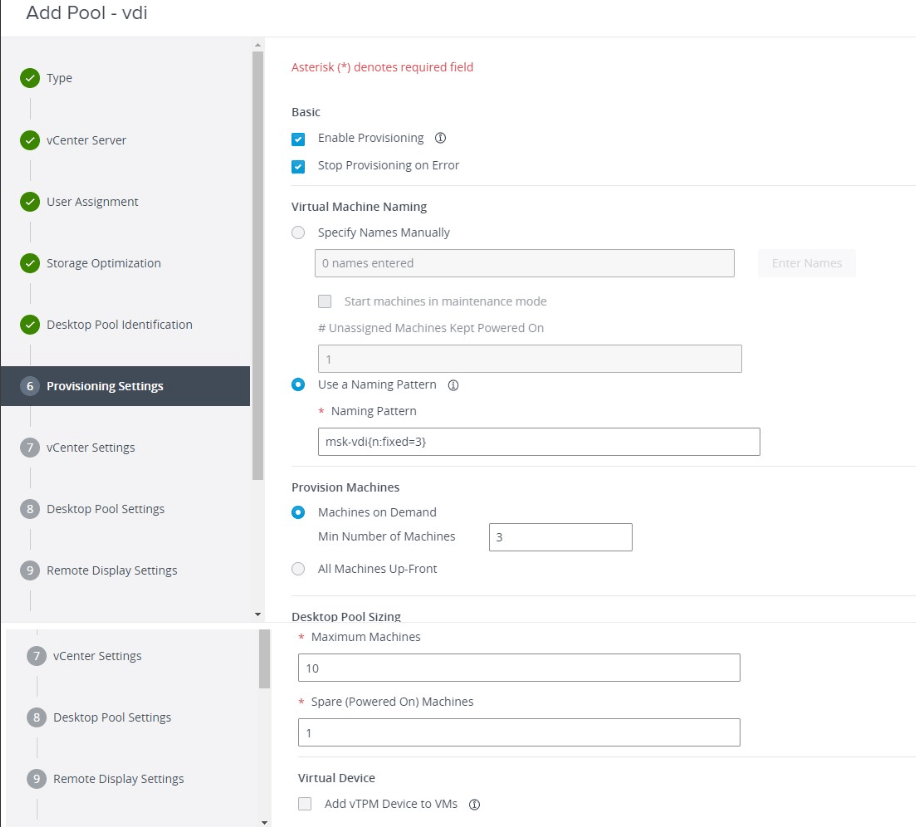
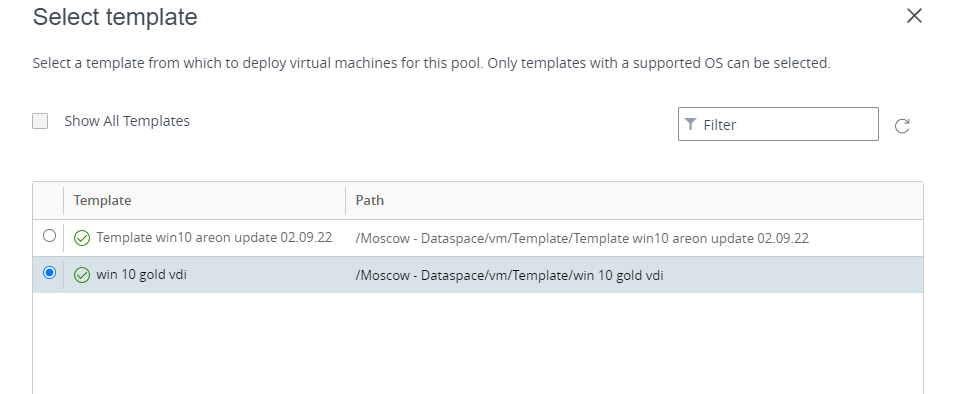
Выбираем наi gold шаблон
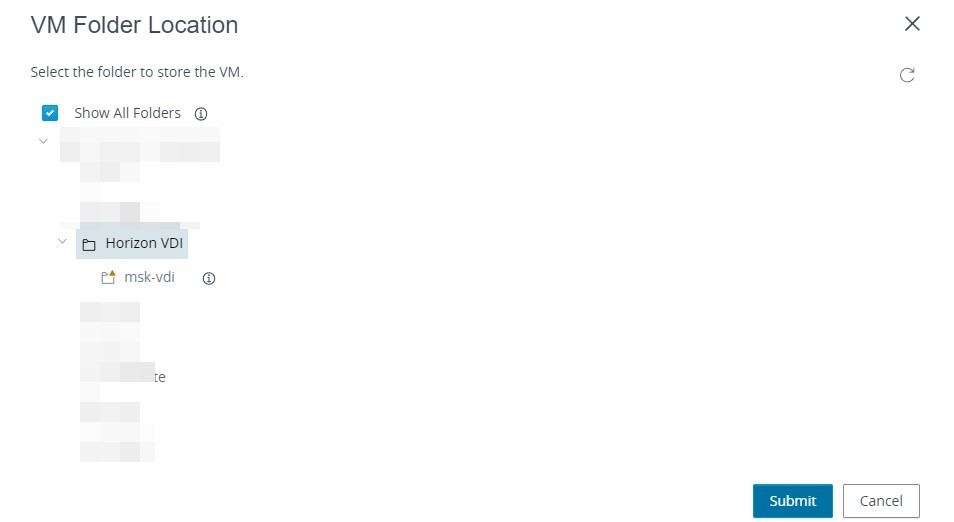
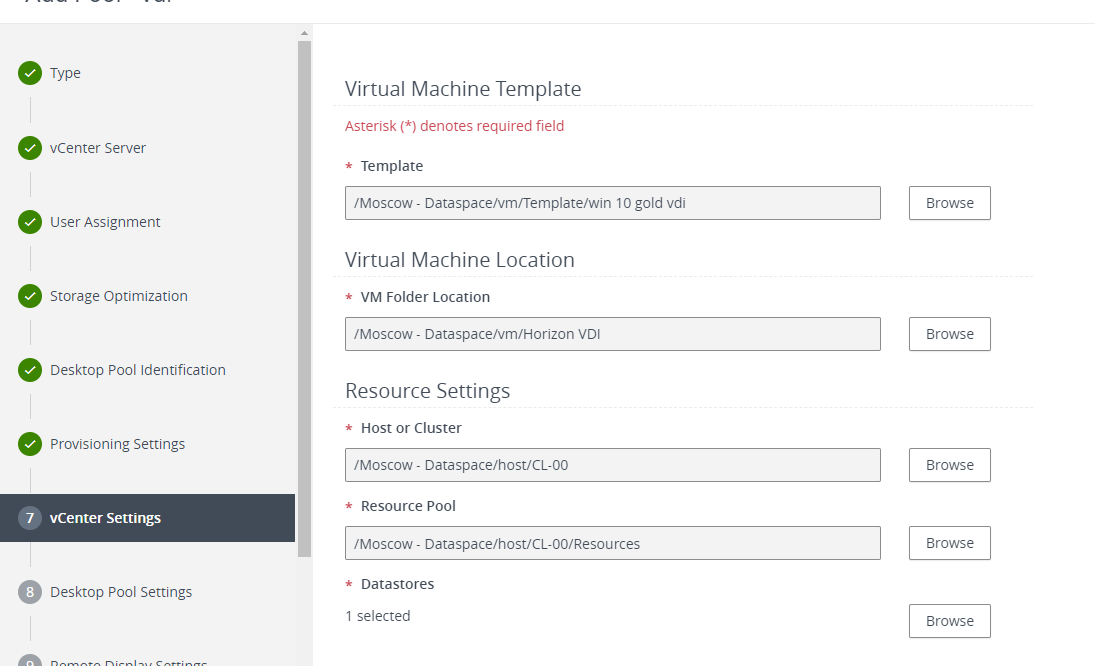
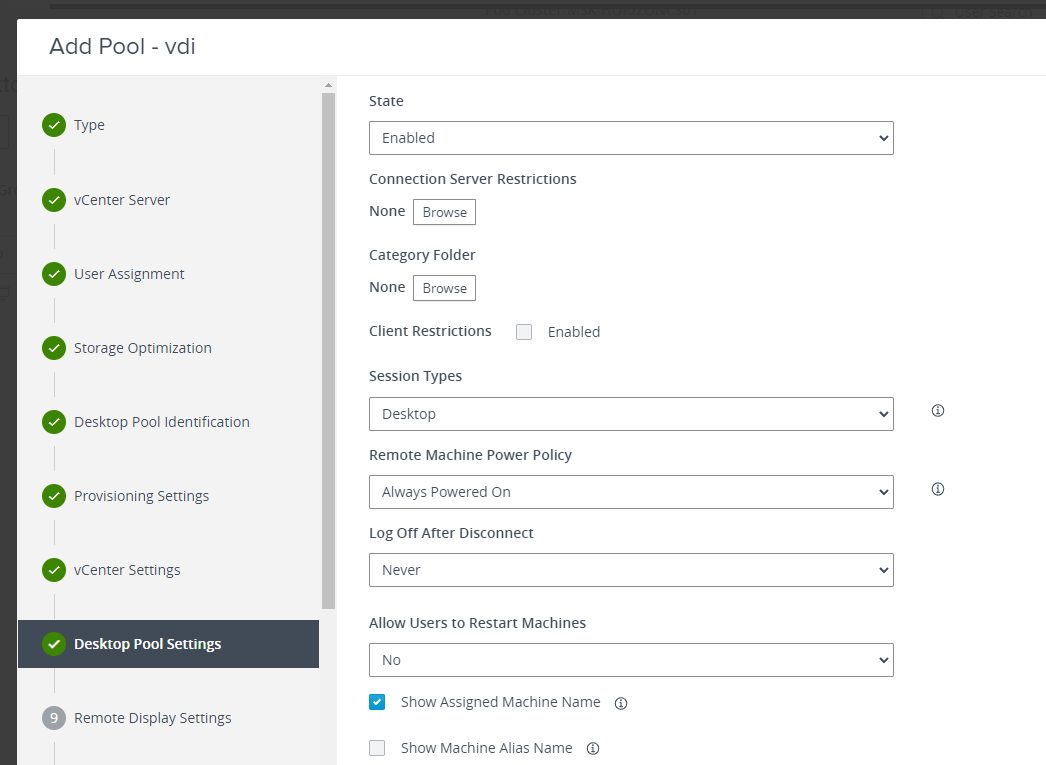
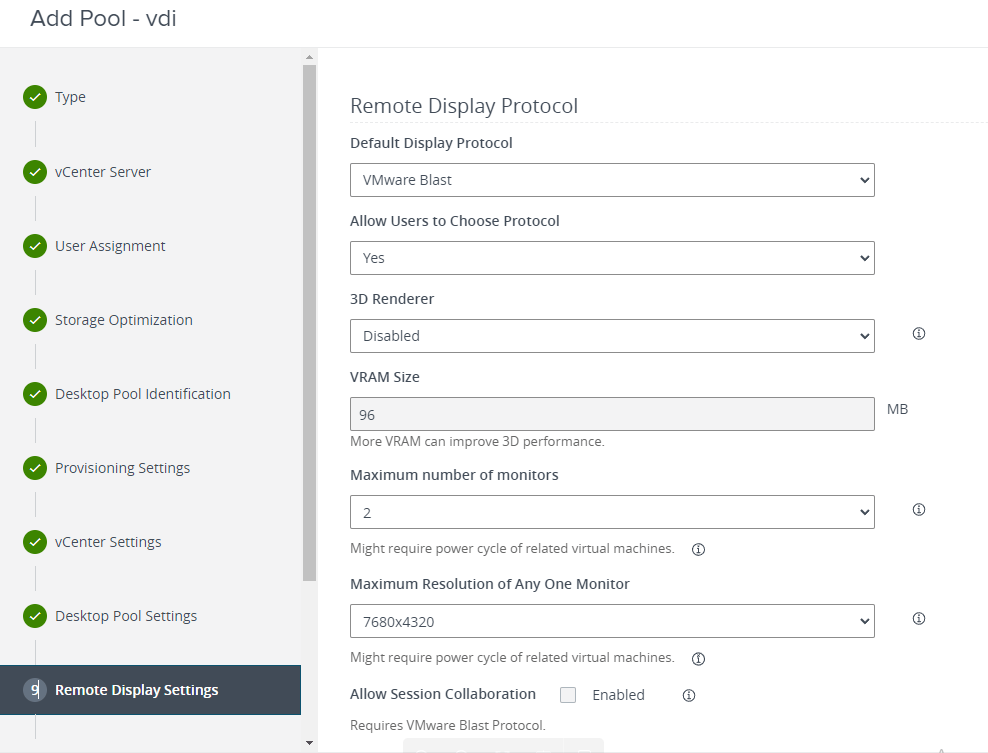
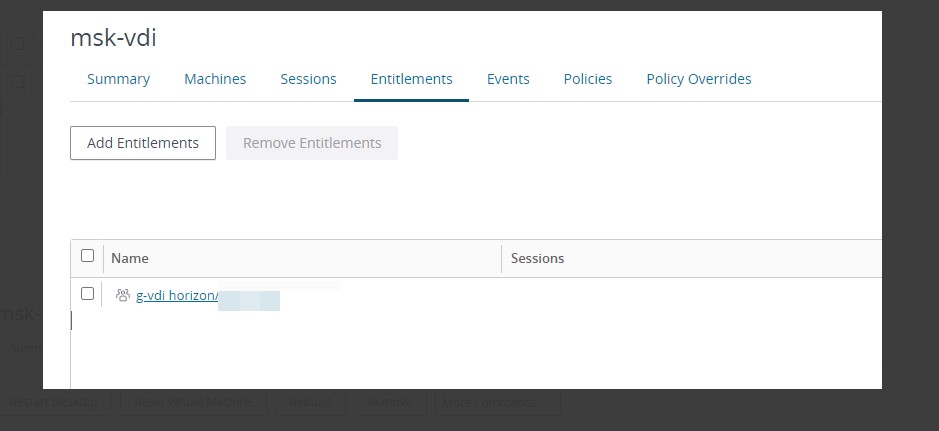
Добавляем группу g-vdi horizon для предоставление vdi
Similar Posts:
- Как заставить Cisco IP Communicator подхватывать настройки пользователя в vdi horizon Instant Clone not run as administrator.
- Как сделать автоматическую сверка VDI-доступа: как найти и убрать «осиротевшие» назначения в VMware/Omnissa Horizon в full машинах
- Как собрать инвентаризацию ESXi-хостов VMware через PowerCLI
- Как удалить осиротевшие cp-template и cp-replica в Horizon после удаления пула (IcCleanup и PowerShell)
- Как сделать балансировку для vmware horizon на haproxy.